
AI Operations
A campaign is one press for the whole loop: find, build, check, post, measure and learn. This screen does not make one video; it keeps a campaign running across many runs.
What a campaign is
A campaign is not a video. It is a saved set of answers that lets the system do the same kind of work again without asking you. Six answers, no seventh:
- Campaign name — name it after the channel or topic, because you will look at it every day.
- Target Page — where the video is published; the wrong Page wastes the whole batch.
- Post language — Vietnamese or English; it chooses the voice and the subtitles.
- Videos per day — start at 1–2. Do not open at 10 on day one.
- Post mode — publish now, or hold for approval if you want to see each video first.
- Runtime — continuous from a start time, or one-shot.
Changing one answer mid-run does not damage a published video; it changes the next run.
Seven modes
The What do you want to make? control is where you pick a mode. Every mode has its own kind of source and its own kind of result; no mode is right for everything.
| Mode | Use it when | What comes out |
|---|---|---|
| Automatic | You want the system to decide | Review or recap, depending on source length |
| Movie review | A short source with a story thread | A narrated video with subtitles |
| Movie recap | A long film with slow stretches | A recap that keeps the climax |
| Audio story | You have no source video | A multi-episode story, each on a hook |
| Reup | You have a source and want a new voice | The same picture, a new sound layer |
| Highlight cut | A long video with moments worth posting | One vertical clip per run; a batch on the Highlight cut screen |
| Translate / dub | The source speaks another language | A translated cut with a new voice and subtitles |
Create and run
-
Open AI Operations
In the AI Operations group, press Create campaign or pick an existing film campaign. -
Answer the six questions
Fill in Campaign name, Page, Main language, Videos per day, Post mode and Runtime. -
Choose a mode
Under What do you want to make?, pick one of the seven modes. The default is Automatic. -
Pick a voice and genre
Voice is one choice for the whole campaign. For Audio story and Movie recap, also choose Film genre and Episodes. -
Press Start
The agent finds, writes, renders, checks, posts and measures. Stop ends the campaign after the current run.
Watch and measure
-
Open Activity
View activity opens the current run: videos found, the status of each one, and the reason if a step stopped. -
Approve if it is waiting
In Hold for approval, a video stops before publishing. Approve in the app or with the button in the Telegram message. -
Read the dashboard
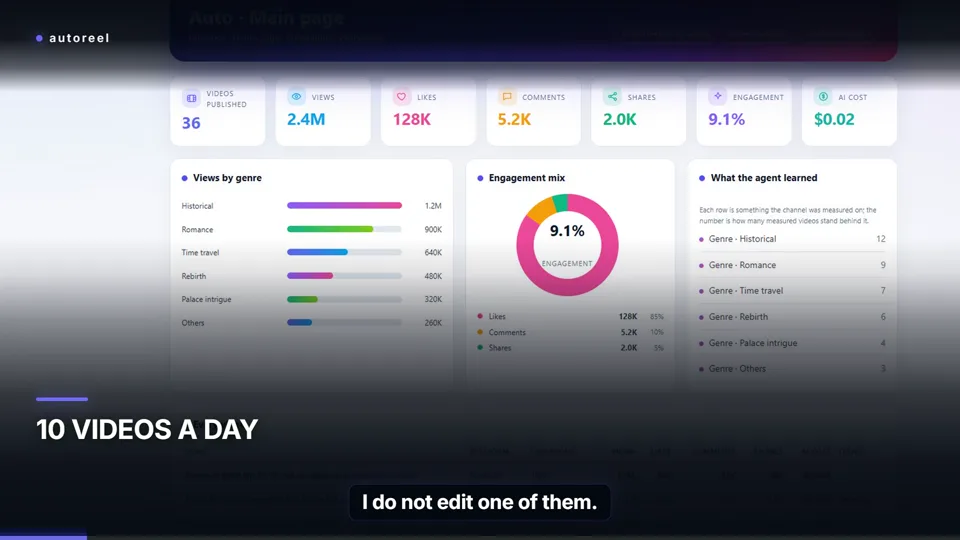
After 24 hours, open the campaign dashboard: views by genre, engagement mix, what the agent learned and AI cost.
Two things remain yours: solving the CAPTCHA when Douyin blocks, and the right to use the source. The system answers neither question for you.
See each mode run
Every mode has a 16:9 walkthrough in Vietnamese and English in the video library. Each one goes from creating a campaign to choosing the job.
When not to use it
When you make only a few videos, when every sentence needs review, or when the source is only on a platform the search cannot reach. Making each video on its own screen is faster than building a campaign for it.