
Adding text and logos
One ffmpeg pass: draw two lines of text and a name or a logo onto a video, at the video’s own shape. The sound is copied rather than re-encoded.
Two places to do this
There are two places this happens, and they differ in how much they let you decide:
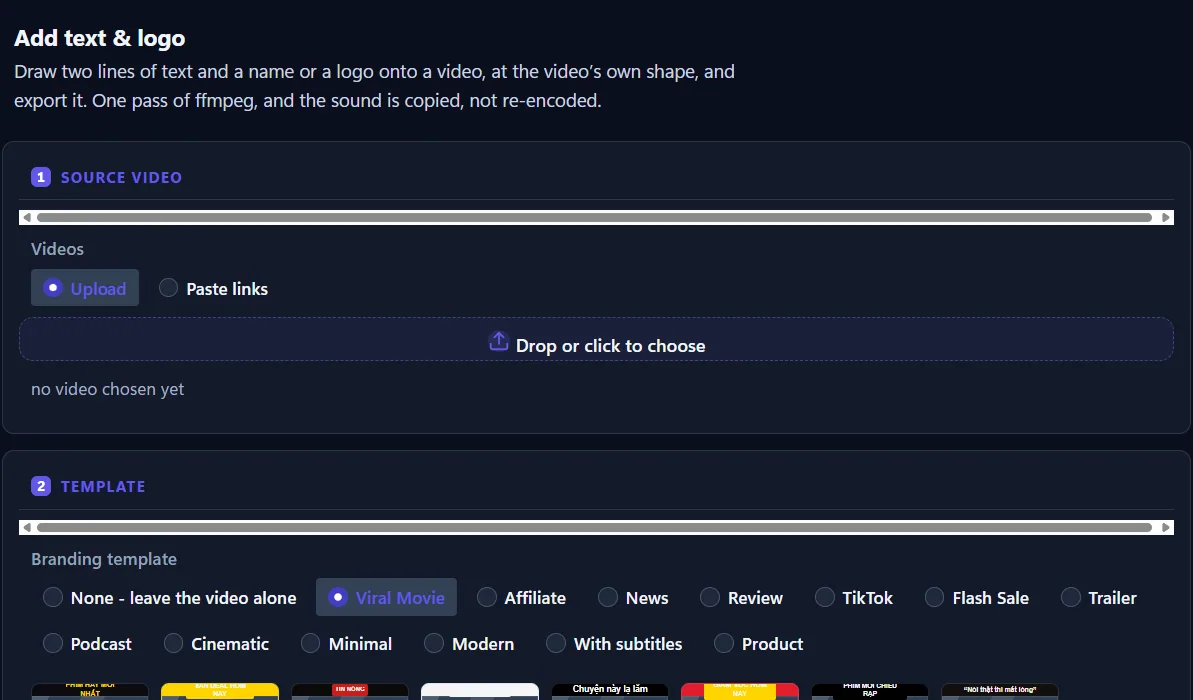
- This screen — Add text & logo in the sidebar — is where the mark is designed: template, words, logo, size and font, and a preview built from a real frame.
- Four other screens carry a small group of the same name, Add text & logo, so the same idea can be used inside their own run: Translate, Highlights, Remove logo and Reup flow. That group holds only Branding template, Top line, Bottom line and the Where the words go choice.
In both places the default is None - leave the video alone: nothing is drawn, no extra encode happens, and no new file is written. The video goes down the old path unchanged.
Four blocks, in order
-
Source video
Videos has two answers: Upload to pick files from this machine, or Paste links into Video links (one link per line). The label beside it counts what you have picked — no video chosen yet means exactly that. -
Template
Branding template starts with None - leave the video alone, followed by 13 templates: Viral Movie, Affiliate, News, Review, TikTok, Flash Sale, Trailer, Podcast, Cinematic, Minimal, Modern, With subtitles and Product. The gallery underneath draws each one so you can see it first — and each card is drawn with that look’s own sample words, so one glance tells you how big its type is, whether it sits top or bottom, and whether it has a ground behind it. The gallery is always drawn in the Reserved strips layout; for the other one, look at the Preview block below. -
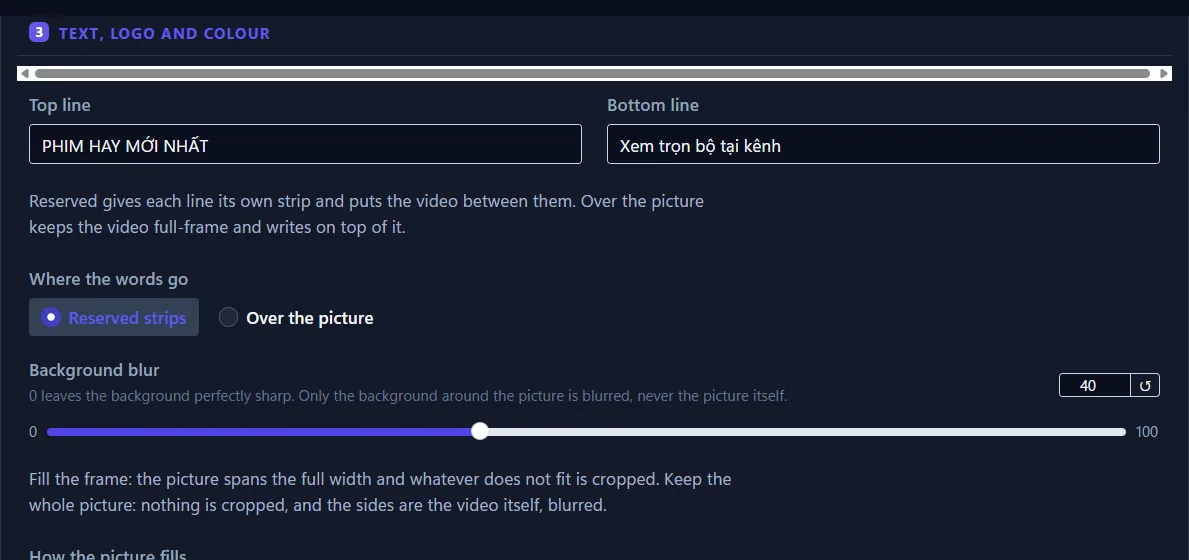
Text, logo and colour
In Text, logo and colour: Top line and Bottom line arrive already filled with the chosen template’s own sample words — edit them to say what you want. Emptying a box means the template draws no line there, rather than falling back to the sample. Right under the two boxes is Where the words go, which decides where the words take their room from; the section of that name below lays out the two answers. Logo / watermark is either A name — type it into The name — or A picture — choose a Logo file. Position puts it Top left, Top right, Bottom left or Bottom right. -
Template colours
Open Template colours: every swatch starts at that template’s own colour, and only the parts this template actually draws are offered — the words, the ground behind them, the badge. Title strip and Bottom strip are offered on every template, because a strip belongs to the layout rather than to one design; they too start at the template’s background colour. Change any of them; Back to the template puts every colour back, the two lines of words included. -
Size, colour and font
Open Size, colour and font for Background, Font, Size and Opacity. -
Preview
The Preview block builds the frame on the left in CSS: it changes as you type, at the proportions of the video.
Thirteen templates, and how they differ
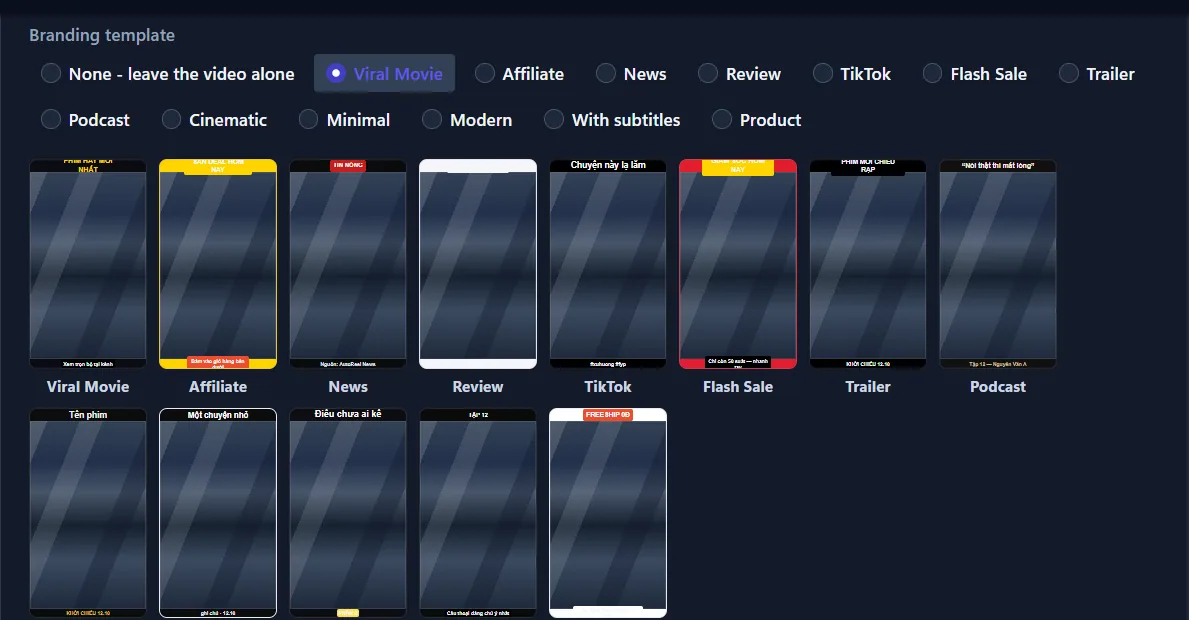
A template is not an empty frame — it is a whole look: where the words sit, how big they are, what colour, whether there is a ground behind them, whether the type has an outline, and where the second line goes. Pick one and you are done; there is nothing to line up by hand.
- Viral Movie — a big title on a dark band, with a source line below.
- Affiliate — a yellow ground, and the closing line on a red plate.
- News — a red tag on top, a source line below.
- Review — a light ground, with the words on white plates so they read.
- TikTok — white type with a shadow and no ground, which suits any frame.
- Flash Sale — a red ground, with the discount line on a yellow plate.
- Trailer — a white film title above and a yellow release date below, each on its own black panel.
- Podcast — serif type on a brown-black panel, made for a pulled quote.
- Cinematic — a large warm-white title with a gold line under it and a black outline that holds on any frame.
- Minimal — small type, no ground, no badge.
- Modern — a big title, with a yellow block around the line below it.
- With subtitles — a line the size of a subtitle, sitting just above the burned-in subtitle band.
- Product — a red tag on top and the name and price on white, above the platform’s caption rail.
Where the words go: two layouts

Every line of text needs somewhere it can be read. Where the words go decides where that room comes from, and it is the choice on this screen that moves the frame the most:
- Reserved strips (the default) — each line with words in it gets a strip cut from the edge of the frame: the top line takes the top strip, the bottom line the strip at the foot. The picture fits whole between them, cropped by nothing, and what fills the sides is a blurred copy of that same video, so the frame stays full of picture rather than of black bars. The strips take the template’s background colour, which Title strip and Bottom strip change.
- Over the picture — the video keeps the whole frame and the words are written on top of it. This is the older layout, and the one a few looks were drawn for: TikTok and Minimal are defined by white type on the picture with nothing behind it.
Two preview frames, and the difference matters
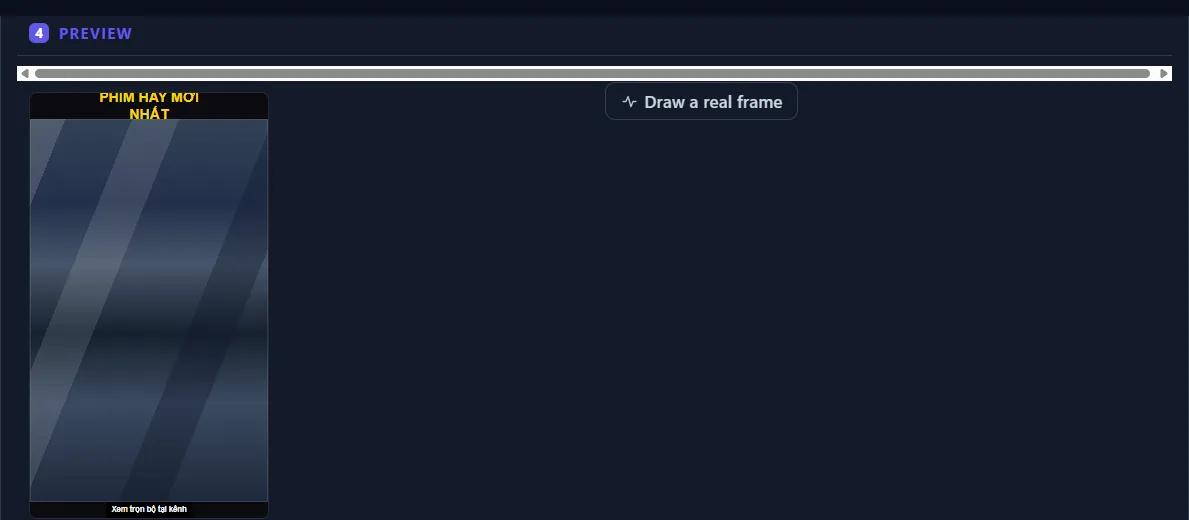
The frame on the left is CSS — quick, updating on every keystroke, but not what ffmpeg will draw. Draw a real frame renders one real frame through the same graph the export runs, which makes it the one that can tell you where the words actually land. It is slower, and it needs both a video and a template chosen first.
Applying it, and collecting the result
-
Press Apply
The summary line above the button says what you are about to do: how many videos, which template, and roughly how many seconds. With nothing chosen the app answers Choose at least one video first. -
Watch it run
Progress walks five steps per video — Read the video, Frame and background, Draw the text, Draw the logo, Export — and counts finished videos against the total. Stop is right there. -
Collect it
When it finishes, the last line reports how many videos went into the Video library. The original is still on disk: the marked file is this run's result, not a replacement for it.