
Product links
This screen reads through a Chrome window already signed in to Shopee, open while it works. Without that window the read button does not run.
A Chrome window of its own
Shopee does not serve a product page to a bare request. The reading happens inside a separate Chrome window — not the browser you use every day — so your own session is not touched and nothing of yours has to be closed.
-
Open that window
In the AutoReel folder, double-clickopen-chrome.bat(Windows) or run./open-chrome.sh(macOS — double-clickingMở Chrome Shopee.commanddoes the same). A Chrome window opens on shopee.vn. -
Sign in to Shopee in it
Once. The session lives in the.chrome-shopeeprofile beside that file, so next time you only reopen the window. -
Leave it open
Keep it open while the app reads. Closing it stops the read button working — and the app cannot open one for you.
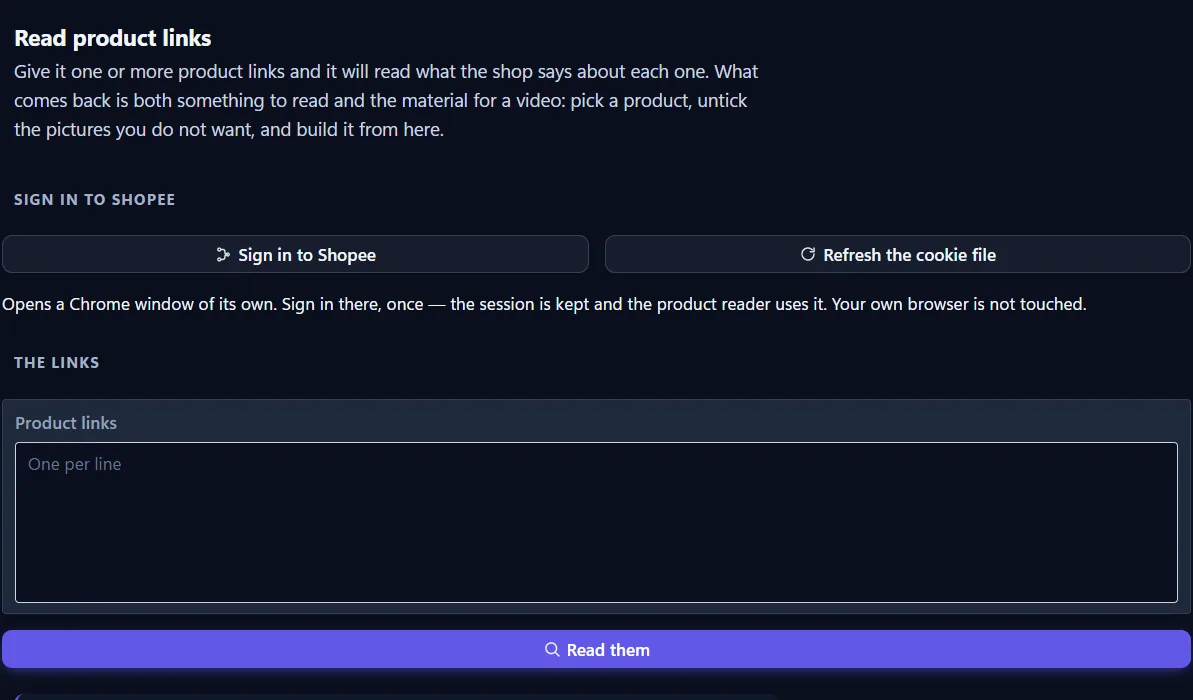
The Shop links screen has two buttons for this: Sign in to Shopee — opens the sign-in window once, and Refresh the cookie file — re-reads the session when the window is open but the app still says you are signed out. With no window reachable, both buttons are disabled and the screen says why.
Reading a batch
-
Paste the links into Product links
One per line, at most 20 in a run. Past that the app tells you to do them in two goes. -
Press Read them
The app opens each link in that Chrome window and takes the product's name, price and pictures. -
Read the What was read table
One row per link, four columns: Link, Product, Price, Result. A link that cannot be read says why in the Result column, and the other links are read as usual.
From a product to a video
Once the links are read, the screen does one more thing: it hands a product's pictures to the Auto video screen to be made into a video.
-
Choose the product under Which product to build from
The list holds the products that were just read. Pressing the button beside it with nothing chosen gets you Choose a product first. -
Tick the pictures under Pictures to build it from
All of them are ticked to start with. Untick the ones you do not want in the video. -
Download them if you want them
The Download the pictures button writes the ticked pictures out as files on your machine — for building a clip yourself, or just keeping them. This step is optional. -
Press Send these pictures to Auto video
The app moves the pictures to the Auto video screen and opens it: the material is already set to local files, the pictures are in the list, and Video Subject is filled with the product's name. Check Videos Generated Simultaneously and Voice, then press Make the video there.
Where it goes wrong
| What you see | What it means |
|---|---|
| Both sign-in buttons disabled, and the screen says no browser window is reachable | The Chrome window was never opened with open-chrome.bat / open-chrome.sh, or it has been closed |
| The Result column says the link could not be read | The Chrome window is not signed in to Shopee, the session has expired, or the link is not a product link. Sign in again, then press Refresh the cookie file |
| That is more than … links. Do them in two goes. | At most 20 links in a run |
| None of those pictures is big enough — … will not use one smaller than 470×470. | The listing is all small pictures. Try another product |
| That product has no pictures to build a video from. | That link carries no picture the app can take |
| Choose a product first. | Which product to build from is still empty |
What next
The affiliate flow runs this whole chain end to end — read the links, make a video from each product, post them — on one press.