
Assets
This library makes nothing. It keeps ingredients for other screens to use again.
What this library is for
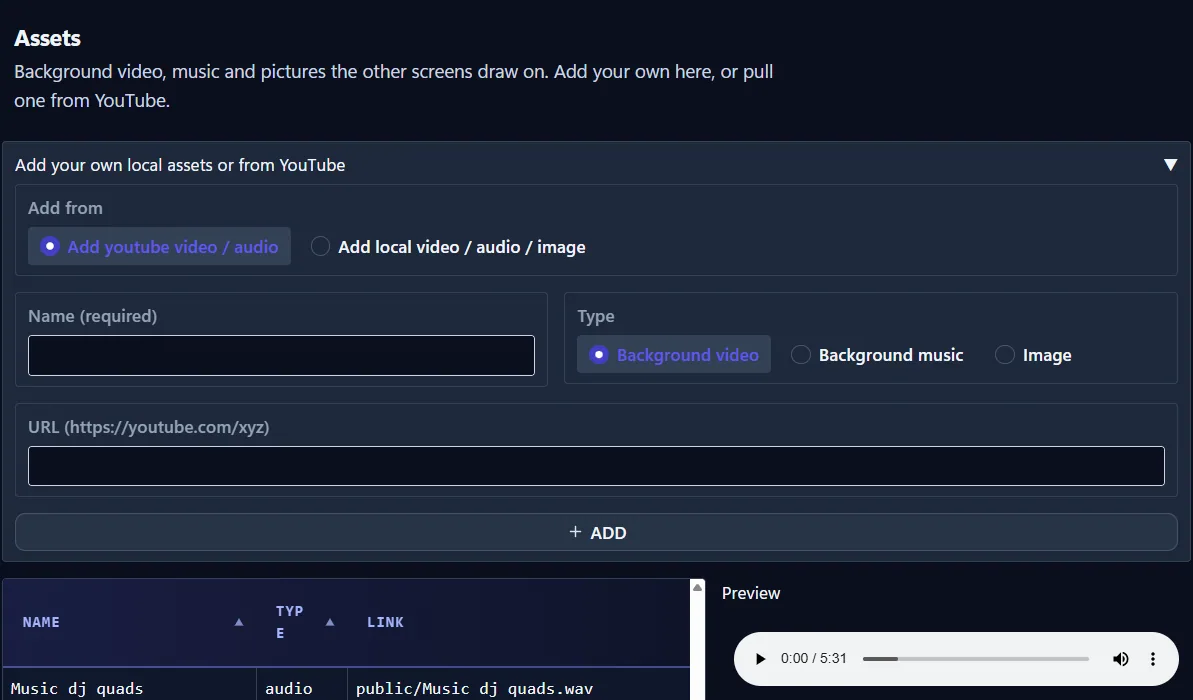
Three kinds of thing live here: background video, background music and images. The making screens read from it — the Chọn video nền (choose background video) and Chọn nhạc nền (choose background music) boxes on those screens offer exactly what you added here.
Add it once and use it in many videos. Files you upload from your machine are kept inside the app's own folder, so deleting the original is safe.
Adding an asset
The Thêm tư liệu từ máy bạn hoặc từ YouTube block at the top of the screen. Thêm từ ("add from") has two choices, and the form changes with them.
-
Choose the source
Thêm video / audio từ YouTube if you have a link, or Thêm video / audio / ảnh từ máy if the file is on your computer. -
Name it
Fill in Tên (bắt buộc) (name, required). This name is how the other screens refer to the asset, so make it memorable. -
Choose a Loại
Video nền, Nhạc nền or Ảnh. Adding from your machine, the file box changes with the type you pick — video, audio or image. -
Paste a link or pick a file
From YouTube, paste into URL (https://youtube.com/xyz). From your machine, click the file box and choose the file. -
Press THÊM
The THÊM (add) button. The asset appears in the table and the form folds itself away.
Looking, selecting, deleting
The table on the left lists everything in the library: name, type, path and source. Click a row to select it, and the Xem trước preview on the right follows that row.
The Xoá tư liệu đang chọn button deletes exactly the asset the preview is showing. Deleting here removes it from the library — videos already rendered with it are untouched.
Downloading the files
The Tải các file về button gathers the assets into one zip, to keep or to move to another machine.