
Opening the app for the first time
Everything lives in one browser window. There is no second application to install after the setup step.
Opening it
Double-click start.bat (Windows) or type ./start.sh (macOS) inside the AutoReel folder. Your browser opens at http://localhost:31415.
Remember that address. This app is not a website on the internet — it runs on your own machine. Close the tab and come back with that address; there is no need to run the script again.
The left column — the whole app is here
Sixteen screens, in five groups named after the work you are doing rather than anything else:
| Group | Contains | When you use it |
|---|---|---|
| Make a video | Shorts · Auto video | When you have an idea and nothing else yet |
| From a video you have | Translate · Highlights · Remove logo · Add text & logo | When you already have footage and want it to be something else |
| Selling | Affiliate flow · Reup flow · Review flow · Shop links · Shopee · Facebook | When the video carries a product and has to go somewhere |
| Your material | Channel links · Assets · Video library | Ingredients and finished work — to keep, and to find again |
| The app | Settings | Keys, devices, licence |
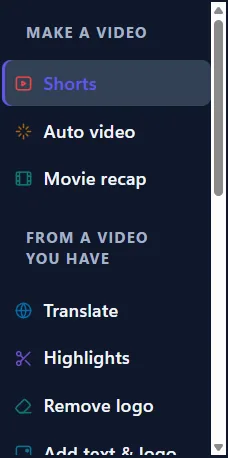
Click a group name to open it. The screen you are on is highlighted, so you always know where you are.
The bar along the bottom — work in progress
Rendering takes minutes, so the app does not make you wait for it. Every job you start runs in the background, and that bar is where it reports.
- You can close the tab — the job keeps running.
- Jobs from every screen appear in the same place, so starting something here and going elsewhere to start something else is ordinary.
- When a job finishes, what it made is in the Video library.
Start any job and watch the bottom bar: it should show the job and its progress. An empty bar means nothing has been started.
Switching language
The VI | EN switch is at the bottom of the sidebar. Switching to English changes the whole interface — the videos you render keep the language you chose for them.