
Removing logos
This screen removes text burned into the picture: a channel logo, a hardcoded subtitle, a timestamp. It cannot touch a subtitle that lives in its own file.
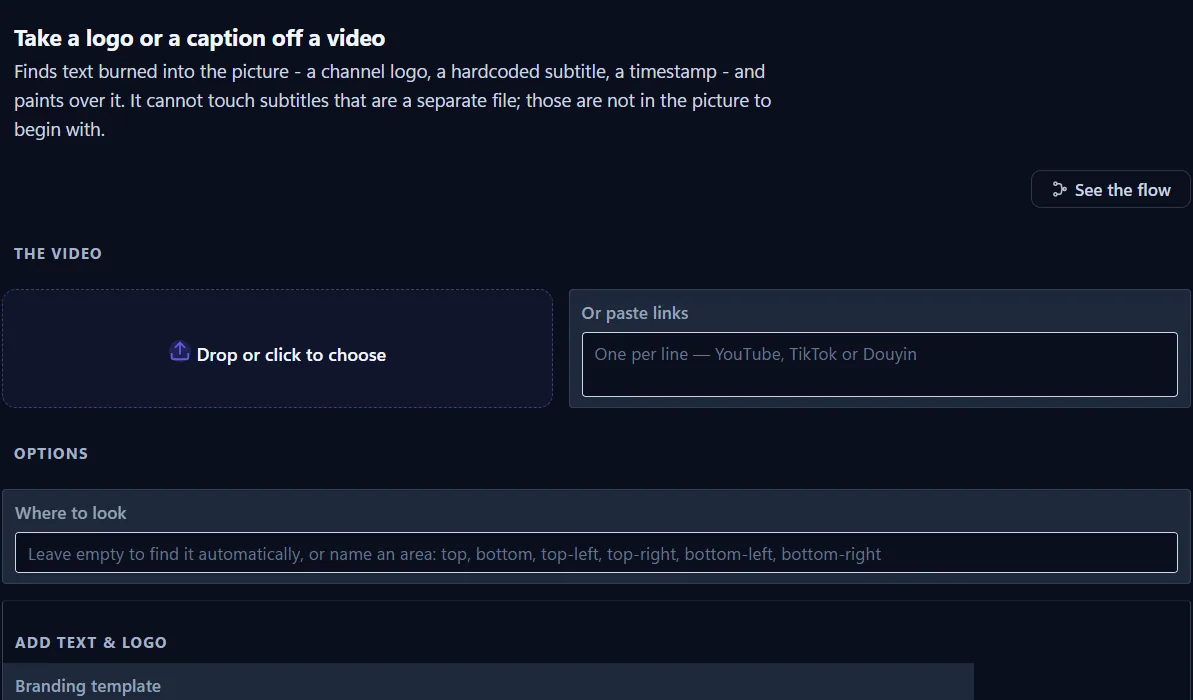
What it can remove
The sidebar calls this screen Remove logo; the page itself is headed Take a logo or a caption off a video. It works by finding the text in the picture and painting over it where it sits.
- It removes text that is in the picture: a channel logo, a hardcoded subtitle, a timestamp.
- It cannot remove a subtitle that lives in its own file — that was never in the picture to begin with.
- It walks the whole video, and progress is shown as a percentage, so a longer video takes longer.
Getting a video in
The block labelled The video takes either kind of source; use whichever you have.
-
Upload one
Press Or upload one and choose the file. -
Or paste links
Into Or paste links — one per line, YouTube, TikTok or Douyin. Several links at once means several separate videos.
Where to look
The Options block holds the Where to look box. Left empty, the app finds the text itself — that is the default and the everyday way to use it. Fill it in when you already know where the mark sits: it takes six area names, spelled exactly as the app lists them.
| Write this | The area |
|---|---|
top | the top band of the frame |
bottom | the bottom band of the frame |
top-left | the top-left corner |
top-right | the top-right corner |
bottom-left | the bottom-left corner |
bottom-right | the bottom-right corner |
Removing it, and collecting the result
-
Add a mark first, if you want one
The Add text & logo group under Options draws text or a logo onto the cleaned file. Left alone at None - leave the video alone, what comes out is the cleaned video with no extra encode. -
Press Remove it
Progress runs as a percentage. Cancel beside it does not stop it instantly: the app says Stopping after the current step… and then Cancelled. -
Look before you use it
The results are in The cleaned video, ready to play on the spot. The remover does well with text over a flat background and less well over a busy one, so watch each one. -
Take them away
Download all takes the whole run; Send to Shopee and Send to Facebook take it straight to those screens.
The files land in the app's videos/cleaned/ folder, and they are not recorded in the Video library. To keep one, download it from this screen — the download button, or one of the two hand-off buttons.