
Dubbing
One source video, three target languages — three videos. This screen changes nothing about the original: it reads the speech, translates it, and speaks it again in a new voice.
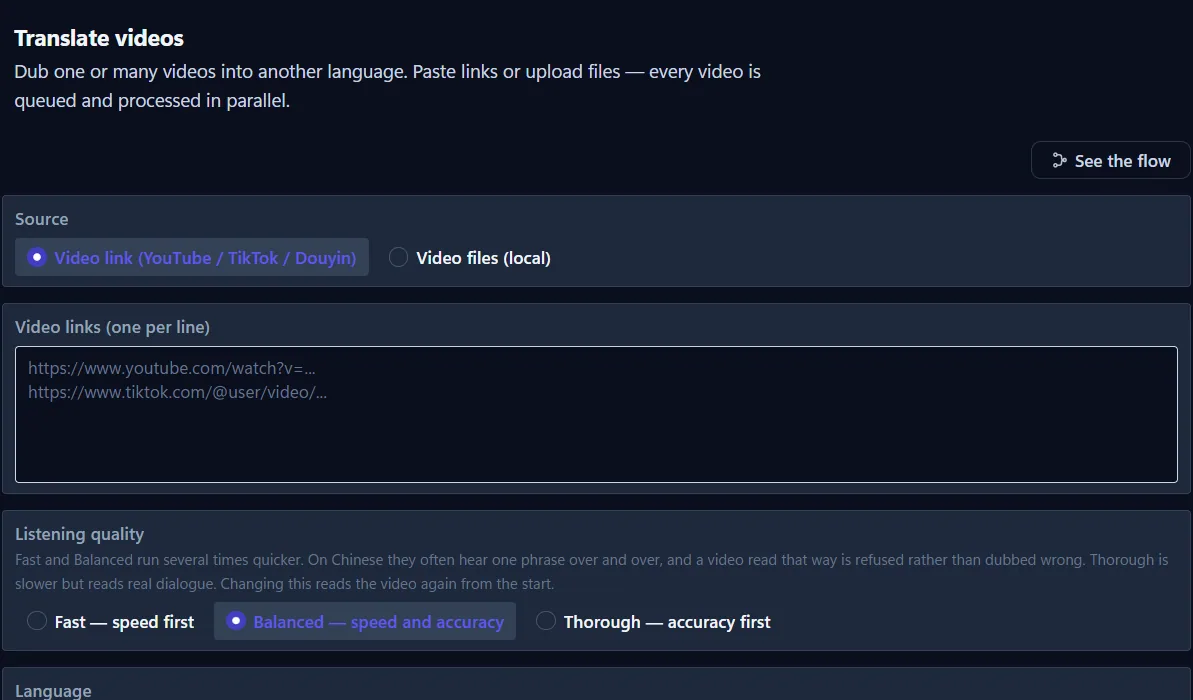
Choosing the source
The sidebar calls this screen Translate; the page itself is headed Translate videos. Same screen, and it takes a whole list of sources at once.
-
Pick a source under Source
Two answers: Video link (YouTube / TikTok / Douyin) or Video files (local). Whichever you pick, its input appears. -
Paste links
Into Video links (one per line) — one link to a line, the whole list in one paste. -
Or choose files
In Video files — select or drop several at once. Dropping several files together works, so there is no need to do them one at a time.
Voice and target languages
-
Pick an engine
Text to speech engine lists the app's engines. One that this build cannot run has — unavailable appended to its name. Preview reads a sample through exactly the engine, language and speed you have selected — listen before dubbing a whole batch. -
Choose the target languages
Language takes several at once. Each language makes its own video from the same source, so two sources and three languages is six videos. -
Choose a voice and a speed
Voice picks from the engine's own list. The Reading speed slider sets pace: 1.0 is the voice's own, and higher is faster.
The two engines that run on this machine — ZeroTTS (on this machine, Vietnamese) and VieNeu TTS (on this machine, Vietnamese) — speak Vietnamese only. Choose any other target language under Language and the app refuses on the spot, naming the languages that engine does support.
Three optional extras
All three are off by default, and all three are extra work on the source before the dubbing happens.
-
Caption video
Tick Caption video to burn subtitles straight into the dubbed picture. -
Remove logo / watermark
Tick Remove logo / watermark when the picture already carries burned-in text or a logo that has to go. Where to look (optional) appears underneath — leave it empty to find the mark automatically, or name the area if you know where it sits. -
Add text & logo
The Add text & logo group picks a template under Branding template. Left at None - leave the video alone, the video goes down the old path with no extra encode at all.
Running it and collecting the results
-
Press Translate
Each job gets a cell in the results grid and they go through the queue. The line above the grid counts how many are finished, running, waiting and failed. Cancel sits beside Translate. -
Download one at a time
A video appears in its own cell as soon as it is done, ready to download on its own. -
Take the whole run
Under Save the results, Download all packs every finished video of this run into one file, and Clear the results only takes the cells off the screen — the files stay in the library. -
Hand them on
Send to Shopee and Send to Facebook take this run's videos over to those two screens.
When the run finishes, the Video library holds exactly as many videos as sources times languages, each tagged Translate.
One run has a ceiling of 40 jobs. More than that and the app refuses at the moment you press Translate, spelling out the arithmetic — how many videos times how many languages — rather than running what fits and dropping the rest.
This screen keeps no list of older runs. Reloading redraws the most recent one; earlier ones cannot be seen here again. To keep work, download it or open the Video library — the videos are still in it.