
Download videos
This screen only fetches, nothing is edited: links in, files out. Every other screen fetches from a link too, but fetches it to carry on with its own job.
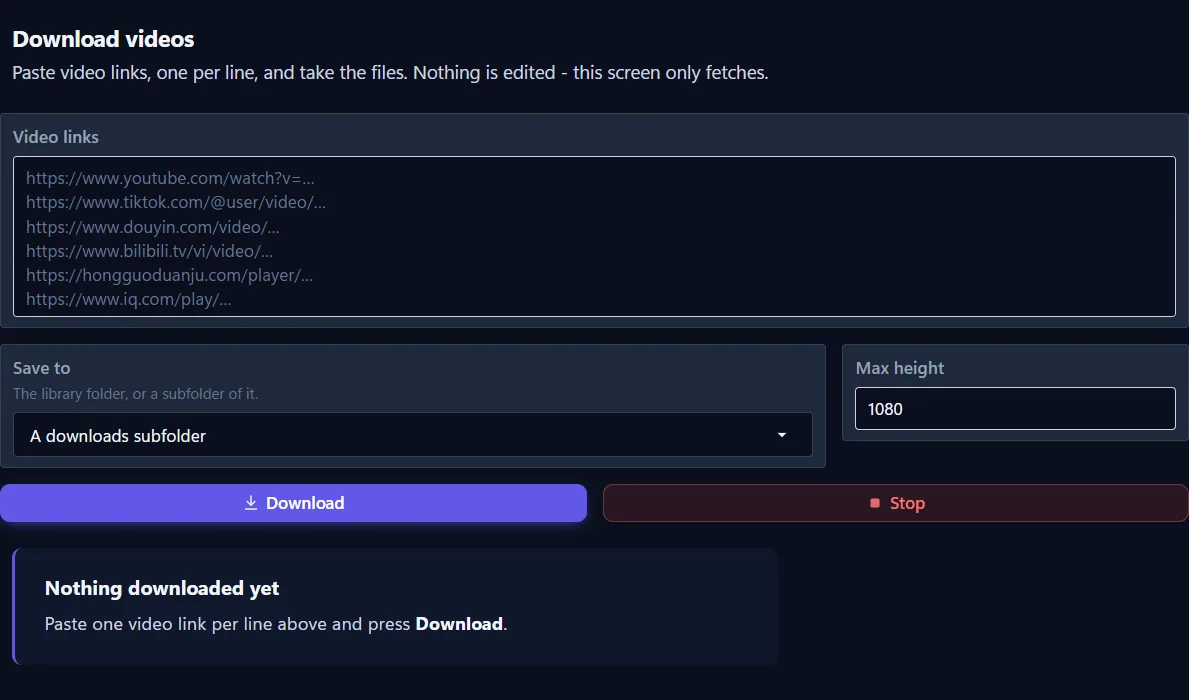
What this screen does
The Your material group, the Download videos entry. Paste a list of video links into it, choose where they go, and press Download — the app fetches each link and leaves the file in the folder you picked.
Other screens take video links too, but they take them in order to carry on with their own job: Translate wants a language and a voice first, Remove logo wants its regions, a reup flow wants a whole chain. This screen is that step on its own — for the days when the file is the thing you came for.
Four steps
-
Paste the links
Paste into Video links, one link per line. The box takes six kinds of link and suggests one line of each inside it:https://www.youtube.com/watch?v=… https://www.tiktok.com/@user/video/… https://www.douyin.com/video/… https://www.bilibili.tv/vi/video/… https://hongguoduanju.com/player/… https://www.iq.com/play/… -
Choose where they go
Save to offers exactly two answers: The video library — this app’s video folder on your machine — or A downloads subfolder inside it. The subfolder is the default, and the line under the box repeats it: The library folder, or a subfolder of it. -
Set a height limit
Max height caps the resolution: the app takes the best version that is no taller than this, so 720 for a batch of light videos is a good deal faster. The default is 1080, and it takes anything from 360 to 2160. -
Press Download
Download starts the run, and the button greys out until that run is over. Pressed over an empty box it runs nothing at all and simply answers No links yet and Paste at least one video link into the box above.
The six pages it reads
The six lines suggested inside Video links are exactly the six pages the app can read, and no others:
| Page | What a link looks like |
|---|---|
| YouTube | https://www.youtube.com/watch?v=… |
| TikTok | https://www.tiktok.com/@user/video/… |
| Douyin | https://www.douyin.com/video/… |
| Bilibili | https://www.bilibili.tv/vi/video/… |
| Hongguoduanju | https://hongguoduanju.com/player/… |
| iQiyi | https://www.iq.com/play/… |
Watching the run
Two lines sit right above the grid of cards. The first is the summary sentence: Fetching 1/3… while it runs, 3/3 file(s) saved. when it is done, plus a sentence counting whatever could not be fetched. The second is the batch bar, with the percentage, how many are running, how many are waiting and how many failed.
- One card per link: a status word with a percentage, a progress bar, the link shortened to its host, and the file name once the file has landed.
- A finished card carries a playable video right on it, so the file can be looked at without opening it.
- A failed card carries the reason, and if the reason is long the rest sits behind a line you click open.
- The file name comes from the end of the link plus a short code, so two different YouTube links never overwrite each other, and the same link always lands on the same name.
Stopping part-way
Stop does not cut the file that is being fetched: the link in flight is left to finish, the links that have not started are dropped, and the app says Stopped. Files already fetched are kept. Those dropped links are not failures — they simply stand still in the stopped state.
Taking the files away
Download all zips every file this run fetched and lets the browser save it — the app says One zip with 3 file(s) — your browser is saving it. The button only lights up once at least one file is there, so it stays grey while the first link is still coming in.
Zipping clears the cards, so the next run starts from an empty grid. Clear the results does the same without zipping anything — the files are on disk, and nothing here touches them.