
Movie recap
One film in, one retold story out. The length you choose is a ceiling, not a number the video has to reach.
What movie recap does
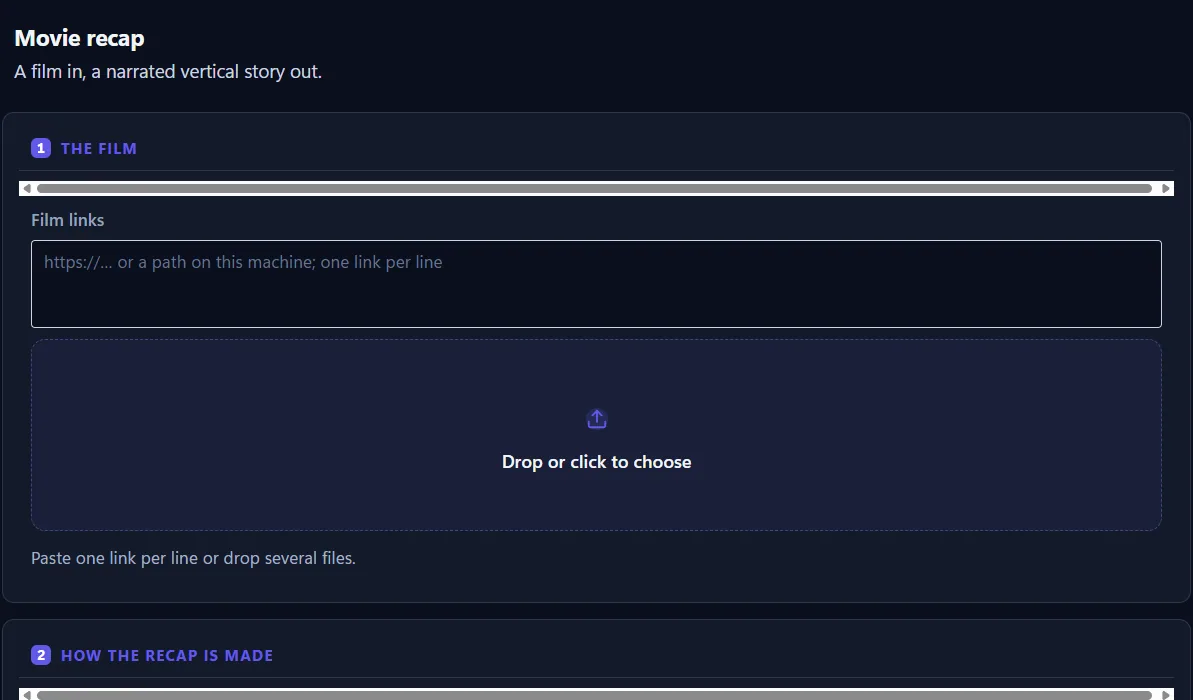
The Movie recap screen takes one film or several — Film links or Film files. The app listens to the dialogue, splits the film into shots, follows the story, and writes a Vietnamese narration. The narration is matched to shots, voiced, cut and joined, given subtitles, and branded if you chose a template.
Each film becomes its own video. The video appears in the Result block as a card, and also as a row in the Video library.
Bringing the films in
The two source boxes take up to 12 films per run: Film links takes one link per line, and Film files takes several files dropped or picked at once. Links and files are counted together in order; past 12 the app takes the first 12 and says so.
-
Paste links or choose files
Film links takes several lines. Film files takes several files in one go. A film is either a link or a file already on this machine. -
Turn on Series when the films are one show
Tick Series — a different line for each film. The table replaces the two shared text boxes. Every row is one film, with its own editable Top line and Bottom line. -
Fill the table from the film list
Type the Series title (top line) and the Bottom line pattern — for example Episode {n} — then press Fill the table. The row number follows the order of links and files. The table needs a branding template to be chosen first.
Setting how it is made
| Field | Takes | Note |
|---|---|---|
| Target length | 1, 2, 3, 5 or 10 minutes | A ceiling; the video may be shorter |
| Listening model | Balanced or Careful (slower) | Careful hears more and runs longer |
| Spoken language | Detect automatically or one language | Pick it by hand when a film opens with music or credits in another language |
| Engine | Vieneu, ZeroTTS or Edge | The voice list changes with the engine |
| Voice name | The engine default, or one voice | Local engines and Edge name their voices differently |
| Reading speed | 0.5× to 2× | Applies to the whole narration |
| Tone | Calm or Dramatic | Changes the narration delivery |
| Frame | 9:16 vertical, 16:9 horizontal, Original frame | The shape of the finished video |
| Add subtitles | On or off | Burned into the picture, in the chosen frame |
| Source sound under the narration | 0 to 1 | 0 is silent; 0.12 keeps the film’s atmosphere |
The Voice block sits under the settings: choose the engine first, then a voice from that engine’s own list. Engine default is the safest choice when the voice names are unfamiliar.
Running it and reading the result
-
Press Start
Every film becomes a project of its own. If another run is going, press Stop first — Start stays off until the old run has actually exited. -
Watch the progress
The steps run from Source, Listening, Shots, Story, Narration, Matching, Voice, Cutting, Subtitles, Branding to Finishing. A film already finished by an earlier run is marked reused instead of being made again. -
Open the cards under Result
Each card carries its state, a title taken from the narration, and the final.mp4 file to download. A failed film says why on its own card. -
Edit the timeline if needed
The Timeline table lets you edit Narration, From (s) and To (s) for each segment. Changing the words speaks that segment again; changing the range cuts it again. Press Save and render to build the new version, Reload to read the table back from disk.
Where it usually goes wrong
| What you see | What it means |
|---|---|
| Only the first 12 films in this press are taken. | Links and files add up to more than 12. Run a second press |
| Choose a film first. | Both source boxes are empty |
| Choose a branding template before using series lines. | Series is on but no template is chosen in Text and logo overlay |
| The video is shorter than the target | The narration only fills that much. This is a warning, not a failure |
| The wrong language was heard | Set Spoken language instead of Detect automatically, then run again |
| Stopped halfway | Finished stages are kept; running again reuses every checkpoint it finds |
What to do next
To cut short moments out of the film instead of retelling all of it, use the Highlights screen. To turn one long review video into several clips, use the Review flow.