
Reup flow
Five jobs, tick the ones you want. With nothing ticked the app still fetches the video and files it in the Video library.
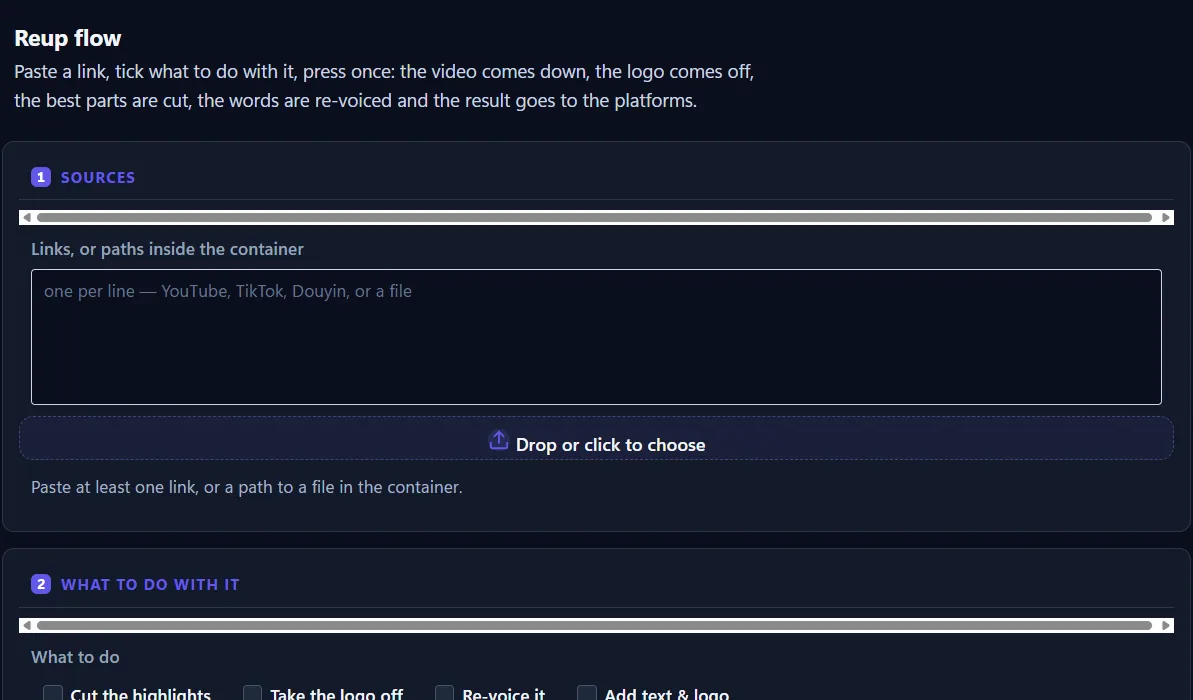
What the reup flow does
The Reup flow screen takes Links, or paths inside the container — YouTube, TikTok, Douyin, or a file — and also takes a file dropped into Or drop video files here. One run takes at most 30 videos.
Each source goes through exactly the steps you tick, and its progress line passes six marks: Fetch → Cut → Logo off → Re-voice → Mark → Post. A step you did not tick leaves its mark out.
The five jobs
The What to do group has five checkboxes. Each one opens its own group under How:
| Checkbox | Its group | What is in it |
|---|---|---|
| Cut the highlights | Cutting | Clips per video (at most 10), Seconds per clip, Clip shape |
| Take the logo off | The logo | Where the logo is — one region per line |
| Re-voice it | Re-voicing | Voice with a Preview button, Speaking speed, Burn in subtitles |
| Add text & logo | Add text & logo | The words and the mark stamped onto the video |
| Post it | Posting | Where to post, Product link, phone, Pages, Post as |
Where the logo is takes one region per line, written edge, x, y, width, height — for example top,20,20,300,80. Leave it blank and the remover looks for the logo itself.
Running one
-
Paste the sources into Sources
One link or one file path per line, or drop the files into the box beside it. At most 30 sources in a run. -
Tick the jobs under What to do
Every box you tick brings its own group up under How. Ticking nothing works too — the run just fetches the video. -
Fill in each group under How
Clips per video and clip shape for Cutting; the logo regions if you want it taken off the right place; a Voice for Re-voicing — press Preview before choosing, because one voice reads the whole clip. -
Choose where it goes under Posting
Pick Where to post, paste a Product link (one product, not a category — Shopee needs it, Facebook takes it in the caption), choose the Phone or the Facebook Pages, and set the Rest between posts (s). -
Press Reup
The line above the button tells you what the run amounts to first: how many videos, roughly how many minutes. To stop: Stop — what is already finished stays in the Video library.
Where it goes wrong
| What you see | What it means |
|---|---|
| A run is already going. Stop it first. | One run at a time. Wait it out or press Stop, then start another |
| Nothing came back for this link. | The link could not be fetched: the source blocks it, the link is dead, or it is a site the app does not read |
| There is no file at … | The path is wrong, or the file is not somewhere the app can read |
| The video could not be read. | The analysis step could not open the file — usually a damaged download |
| Nothing in this video was worth cutting. | The scan found no window worth cutting. Untick Cut the highlights if all you wanted was the video itself |
| The logo could not be taken off. | The region is wrong. Check the edge, x, y, width, height numbers |
| None of these clips came back re-voiced. | Every clip failed at the dubbing step — the status line of each one says how |
| Stopped. What was already made is in the library; nothing was posted by this run. | Stop pressed partway: what was rendered survives, the posting never started |
What next
What a run produced is in the Video library — where you watch it, download it, and pick it for the posting screens.