
Links from a channel
This screen makes no video and downloads nothing. It returns a list of links, so you can trim it before anything uses it.
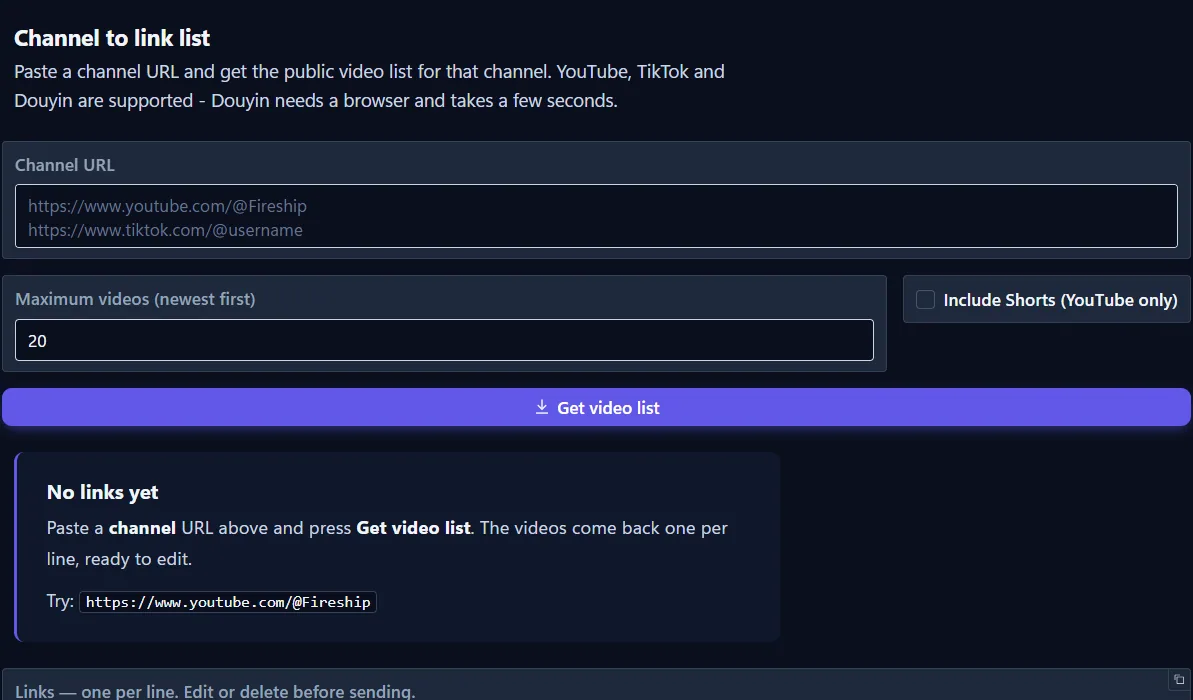
What this screen does
The Kho của bạn (your material) group, the Link từ kênh entry. You paste the URL of a YouTube or TikTok channel into it, and it returns that channel's public videos as a list — one link per line.
The page itself opens on the heading Từ kênh ra danh sách link ("channel to link list"); the sidebar entry is shorter. Both are this same screen.
Getting the list
-
Paste the channel URL
Paste it into Link kênh (channel URL). YouTube channels and TikTok channels both work; the box suggests two shapes:https://www.youtube.com/@Fireship https://www.tiktok.com/@username -
Set the maximum
Số video tối đa (mới nhất trước) takes 1 to 200, and defaults to 20. The list always starts from the newest video. Tick Lấy cả Shorts (chỉ YouTube) ("include Shorts — YouTube only") if you want Shorts in the list too. -
Press Lấy danh sách video
The list fills the box below, whose label reads Các link — mỗi dòng một link. Sửa hoặc xoá trước khi gửi. -
Edit the list
Delete the lines you will not use and keep the ones you will. The box is freely editable, and there is a copy button in its corner for pasting elsewhere.
Sending it to the dubbing screen
The Gửi sang tab Lồng tiếng → button at the bottom of the screen overwrites the link box on the Lồng tiếng (dubbing) screen with exactly this list, and opens that screen.
Saving the list as a file
The Lưu danh sách thành file button packs the list into a zip whose only content is a text file with one link per line. Use it to keep the list.
To paste the list somewhere else, the copy button in the corner of the link box is quicker — nothing has to be downloaded.