
Video library
This is the only place to find a rendered video again. Without it the file sits somewhere on disk with no way to know where.
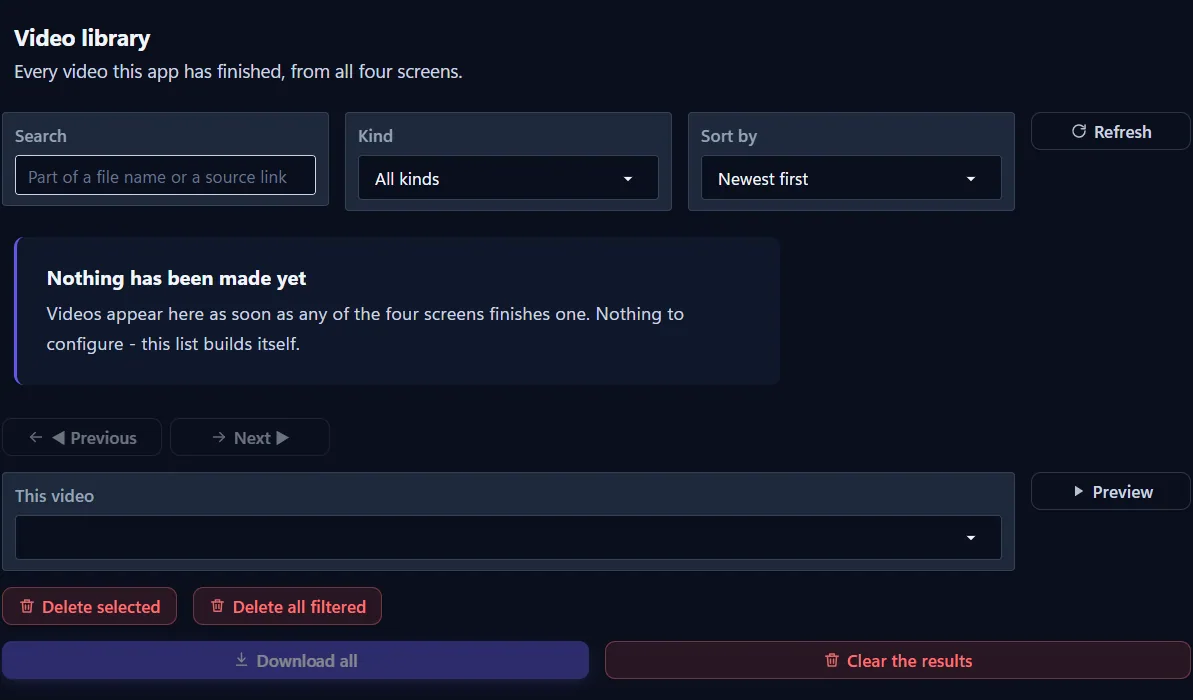
A ledger of finished work
Every video the app finishes lands here, whichever screen made it. This screen renders nothing and edits nothing — it lists, searches, previews and hands files over.
The Thư mục column records the path on your machine, not a path inside the app. Click that path to open the folder page: the files in that folder, with a button to copy the path. The app runs in Docker and cannot open Explorer on your machine, and a file:/// link is refused by browsers when the page came from http:// — so this is the version of "open the folder" that works everywhere.
Searching and filtering
One row of four things: Tìm kiếm, Loại video, Sắp xếp, and the Làm mới button.
- Tìm kiếm (search) matches part of a file name or a source link. It only runs when you press Enter.
- Loại video filters by kind: Tất cả (all kinds), or Video ngắn, Video tự động, Tóm tắt phim, Lồng tiếng, Cắt highlight, Đã đóng dấu, Reup, Review.
- Sắp xếp (sort by): Mới nhất trước (the default), Cũ nhất trước, or Tên file.
- Làm mới re-reads the disk and rebuilds the list — for after you have deleted or copied files by hand.
Reading the table
Six columns: a tick box to select a row, Loại video, Tên file, Dung lượng (size), Thư mục and Ngày tạo (kind, file name, size, folder, created). The kind is a coloured pill to scan by; size says how heavy the file is; the folder is a link; the date lines its digits up so a column of them can be read at a glance.
A file that was deleted or moved off the disk gets the file không còn mark. The row stays in the list — it is only saying the file has gone elsewhere.
Deleting videos to free space
This is the place to clear disk space: deleting here removes the file from the disk, not just from the list. There are two ways, and both ask once before they delete anything.
-
Tick the videos to remove
The tick box is at the start of every row. To pick old videos quickly, set Sắp xếp to Cũ nhất trước ("oldest first") and tick from the top down. -
Press Delete selected
The first press deletes nothing — the app repeats the count and the total size, for example Delete 12 selected videos (3.4 GB)? Press Delete selected again to confirm. Only the second press deletes. -
Read the status line
When it finishes, the app says Deleted … videos, freed … and redraws the table. Rows whose file was already gone are cleared out too.
Previewing and downloading
Pick a video in the Video này list and press Xem trước to watch it in the page without opening the file.
The Tải tất cả button zips exactly the videos currently shown — that is, after filtering. To download everything, set Loại video to Tất cả, leave Tìm kiếm empty, and sort however you like.
Straight into a posting screen
The Shopee and Facebook screens both carry a Lấy từ thư viện video button. It takes files from here straight into the posting queue, so nothing has to be picked from scratch.