
The AI key
This is the only required key. Without it, no screen can write a script.
What this key is for
Everything to do with words goes through it: writing video scripts, translating subtitles, naming products, and the assistant inside the app. The picture and the voice run on your own machine and need no key.
This key is metered and paid straight to the provider — not through us. A video of a few dozen seconds costs a few cents. The smallest top-up lasts a long time.
Choosing a provider
| Provider | Where the key comes from | Note |
|---|---|---|
| DeepSeek | platform.deepseek.com → API Keys | The cheapest of the three, and good enough at writing Vietnamese scripts |
| OpenAI | platform.openai.com → API keys | Dearer, slightly better Vietnamese |
| Custom | Your own provider | Fill in the Base URL too — for an OpenAI-compatible endpoint elsewhere |
Getting a key
-
Create an account
At whichever provider you picked. A card is needed to add credit, but there is no subscription. -
Find the API keys page
DeepSeek: platform.deepseek.com → the left-hand menu → API Keys. OpenAI: platform.openai.com → API keys. -
Create a new key
Name it anything — "AutoReel" is a good choice, so you know later which key is which. -
Copy it somewhere else immediately
The key is shown once. Close the window and it cannot be viewed again; you would create another.sk-xxxxxxxxxxxxxxxxxxxxxxxxxxxxxxxx
Adding credit is a separate step after creating the key. Until you do, a perfectly good key still reports a quota error — which is where most people conclude they pasted it wrong.
Pasting it into the app and testing it
-
Open Settings
Sidebar, the Ứng dụng group, Cấu hình (Settings). The first block is Mô hình AI. -
Pick your provider
Click Nhà cung cấp (Provider) and choose the one you took the key from. Base URL and Model fill themselves in; you only type them under "Custom". -
Paste the key
The field shows dots rather than characters, on purpose — somebody looking over your shoulder cannot read it. The Hiện (Show) button beside it reveals it if you need to check.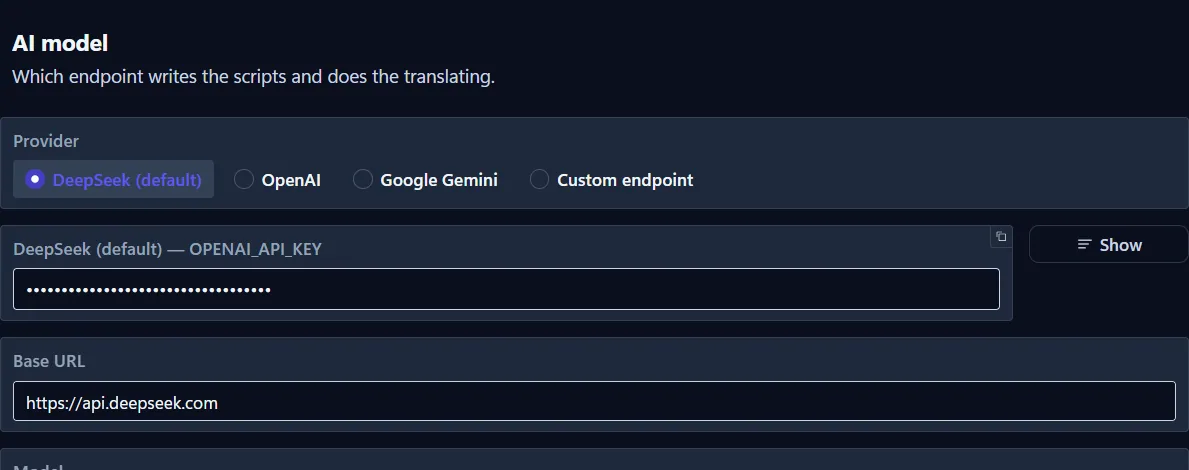
Four fields, and one button that answers the only question worth asking: does this key work. -
Press Kiểm tra kết nối
The Kiểm tra kết nối button makes a real call to the provider with exactly what you just pasted — nothing is saved yet, so a mistake costs nothing. The answer appears below it. -
Press save
The lưu (save) button at the bottom of the screen. It changes to Đã lưu ("saved") for a moment.
After Kiểm tra kết nối, a green line appears saying the connection worked. Red means it did not — read the sentence it gives you; it is usually a wrong key or an account with no credit.
Saving is a separate step. Testing only answers; it writes nothing. Paste a key, close the tab, and you will paste it again next time.
When it reports an error
| The message | What it means |
|---|---|
401 or invalid api key | The key is missing characters, or was deleted on the provider's site |
insufficient balance | The account has no credit, or has used it up |
model not found | The model name is wrong — choose again in Model, or leave the default |
| Cannot connect | The network, or a wrong Base URL under "Custom" |
Changing provider halfway through is ordinary — paste the new key, test, save. Nothing is lost.